
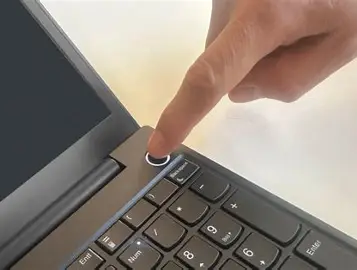
Understanding the basic diagnostic process can help users identify the possible cause before taking the laptop for repair.
1. Check the Power Source
First, confirm that the wall socket is working. Test the socket with another device if necessary.
Also check whether the laptop charger is properly connected and whether its indicator light is functioning.
2. Inspect the Charger
A faulty charger is one of the common reasons a laptop may not power on. Check the charger cable for cuts, damage, or loose connections.
If possible, test the laptop with another compatible charger.
3. Check the Battery
A damaged or completely discharged battery may prevent some laptops from powering on. If the battery is removable, remove it and try powering the laptop using only the charger.
4. Observe the Power Indicators
Press the power button and carefully observe what happens.
Check for:
- Power LED lights
- Charging indicators
- Fan movement
- Keyboard lights
- Beeping sounds
- Screen activity
These signs can help identify whether the problem is related to power, memory, display, or another internal component.
5. Perform a Basic Power Reset
Disconnect the charger and remove the battery if it is removable. Hold down the power button for about 15–30 seconds, then reconnect the charger and try powering on the laptop again.
This may help remove residual electrical charge.
6. Check External Devices
Disconnect USB devices, external keyboards, flash drives, and other accessories. Sometimes a faulty external device can affect the startup process.
7. Consider Internal Hardware Problems
If the laptop still does not power on, possible internal causes may include:
- Faulty charging port
- Damaged battery
- Faulty RAM
- Power circuit problems
- Motherboard faults
- Damaged power button
Further diagnosis may require professional tools and technical knowledge.
Important Safety Advice
Do not continue using a laptop if you notice burning smells, smoke, unusual overheating, or signs of liquid damage. Disconnect it from power and seek qualified technical assistance.
Conclusion
Diagnosing a laptop that will not power on requires checking the simple causes first, such as the power source, charger, battery, and external devices. If these checks do not solve the problem, a professional technician may need to test the internal components.
Proper diagnosis is the first step toward successful laptop repair.